Building a New Web Shop with BC as Master Data Management
This guide helps you set up a brand new Prestashop webshop using Business Central (BC) as the source of truth for all product data.
🧾 Prerequisites
Before you begin, make sure you have:
- Access to a Business Central environment with the MyShopMan extension installed
- Access to an empty or newly installed Prestashop instance (versions 1.7.8.x, 8.x, or 9.x)
- Admin access to both systems
- API credentials generated from Prestashop (URL + API key)
⚙️ Step-by-Step Setup
1. Create the Shop Configuration in Business Central
- Go to Shops in BC (
Alt+Q → Shop Configurations) - Click New
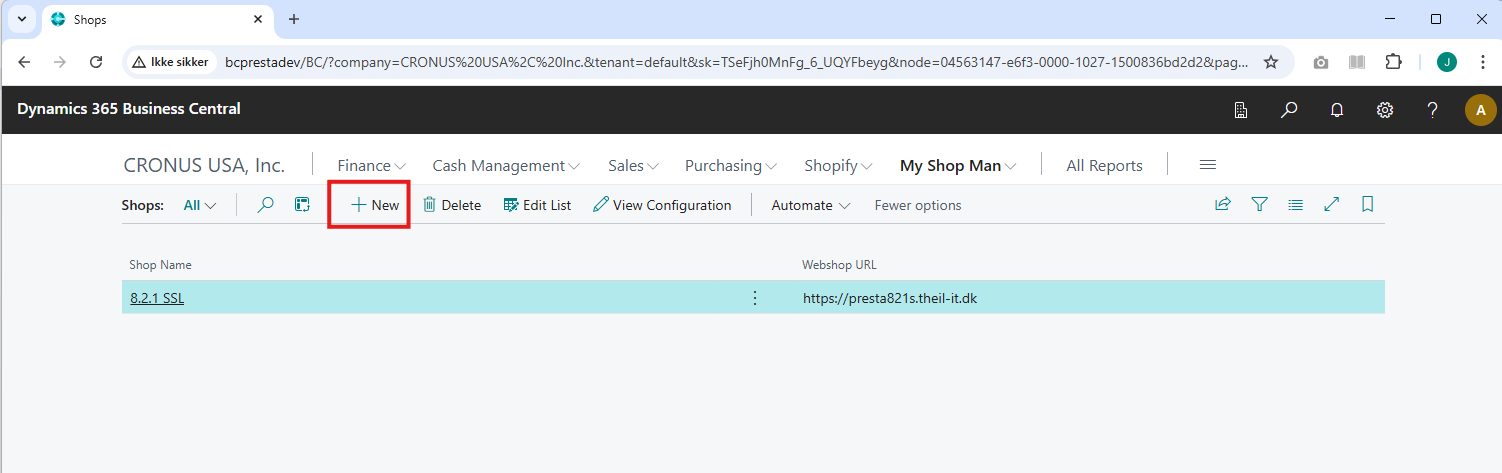
- The Shop Configuration page opens. Fill out the following:
Shop Name: e.g.My First PrestashopShop URL: e.g.https://yourshop.test/Shop Admin URL: e.g.https://yourshop.test/872adminAPI Key: Paste the key from Prestashop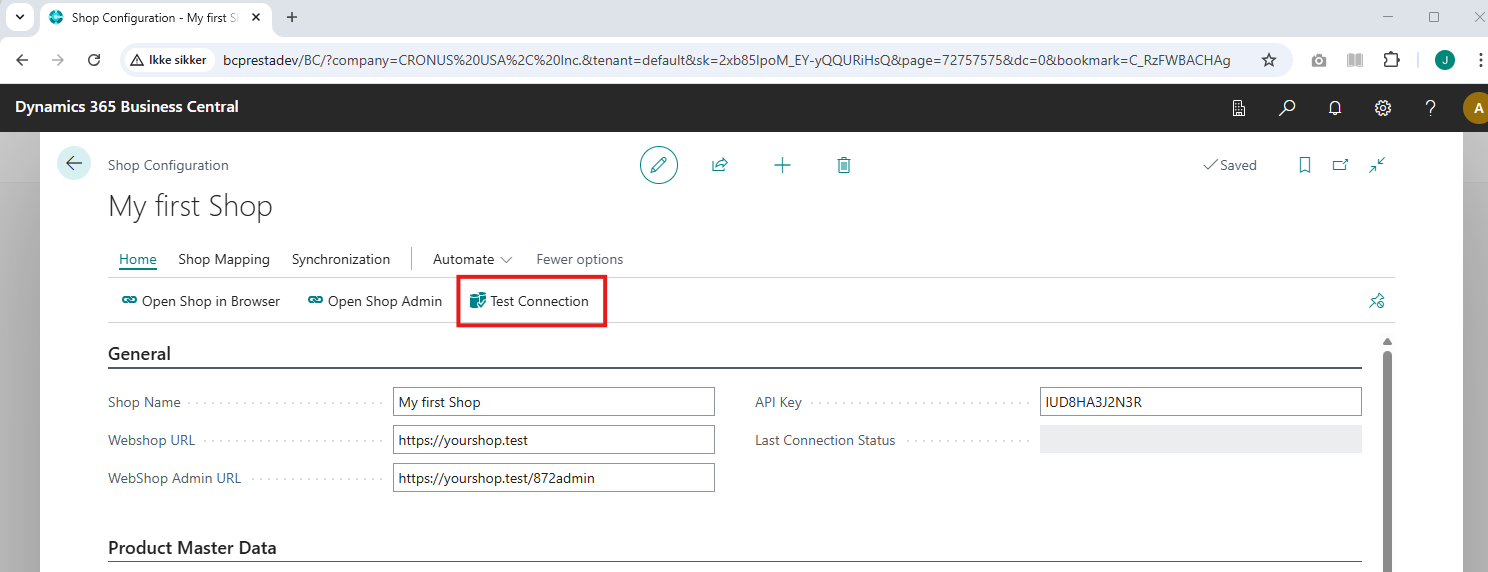
- Click Test Connection to verify the API access works. You should see "Connection Successful" if the connection is established.
2. Select how to sync BC Products to Shop Items
Items in Business Central are called Products in the Webshop. You can choose Items to sync manually one by one, or have My Shop Man sync items from selected categories
- Go to the Product Master Data section on the Shop Configuration page

- Turn on Product Sync. This is a toggle you can always use to start/stop the synchronization of BC items to Shop Products
- Choose Business Central as the Product Data Master. This ensures that Business Central controls all aspects of product information. This is always the reccomended setting.
- Select how you want to map variants :
- Item Variants : The recommended approach. This will use the Business Central Item Variant feature to map to Web Shop Product Combinations
- Discrete Products : Each product combination in the webshop is a discrete item in Business Central. This can mean a lot of Items in BC
- New Item Template Code : This is not relevant unless you want to create products in Business Central from Web Shop products, so for this setup you can leave this blank.
- My Shop Man uses Business Central Item numbers for mapping between Web Shop Products and Business Central Items, but you can turn on GTIN mapping to allow mapping using item GTIN as well.
Category Synchronization
- Sync Select Categories : Toggle this on to let My Shop Man pick items to sync based on Item Categories
- To select and map categories, click the ... button :
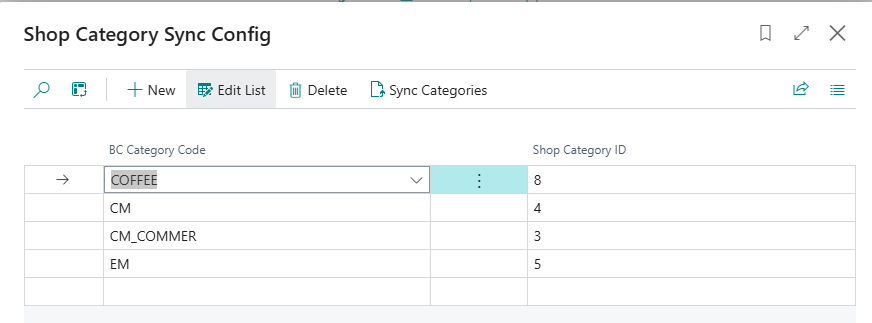
- To fetch Categories from the Web Shop, press Sync Categories, you can do this again if you add or change categories in the shop. If you have not yet created any categories in the Shop, you will need to go to the Web Shop Admin interface and create at least one.
- Now map each Business Central Item Category that you want to sync products from to a Shop Category. You can sync multiple categories in Business Central to the same category in the Shop if you want.
3. Map and Sync Products from Business Central to Web Shop
- From the Shop Configuration Page, select Shop Mapping and then Open Product Map
- Click Map Products
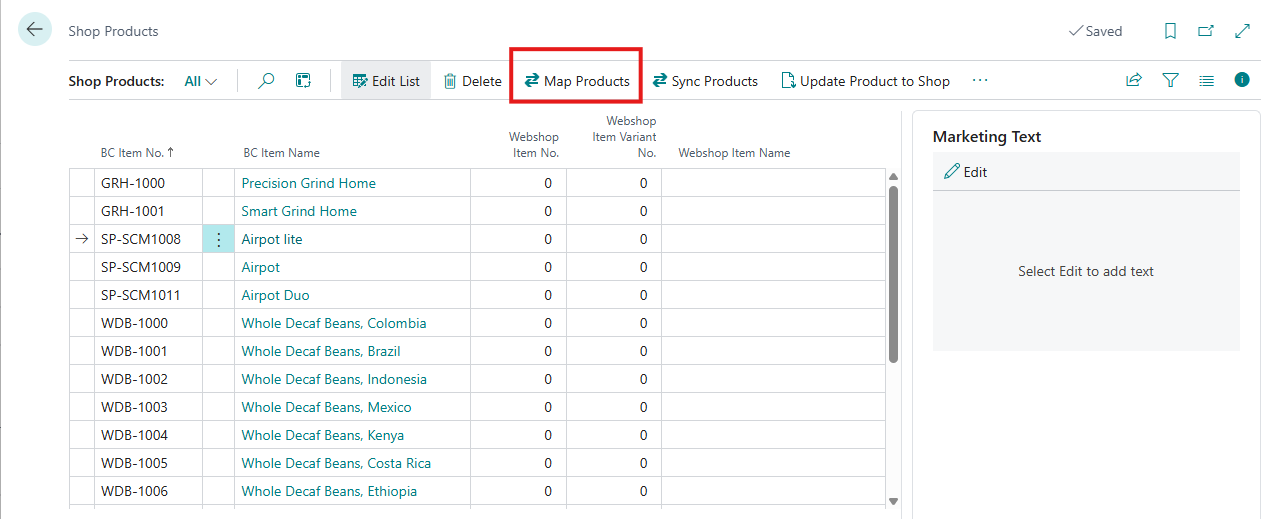
- Based on the categories you configured, My Shop Man will add the Items for those to the map. If the Web Shop already contains Products that map to any of the items, you will see that on the right side of the list. First time setting up a new Shop, there wont be any of course.
- You can also manually add individual items to the map that you would like synced to the Shop
- Press Sync Products to start the transfer of product information to the Web Shop. After the sync has completed, you should the the mapped Web Shop products on the right side of the product map:
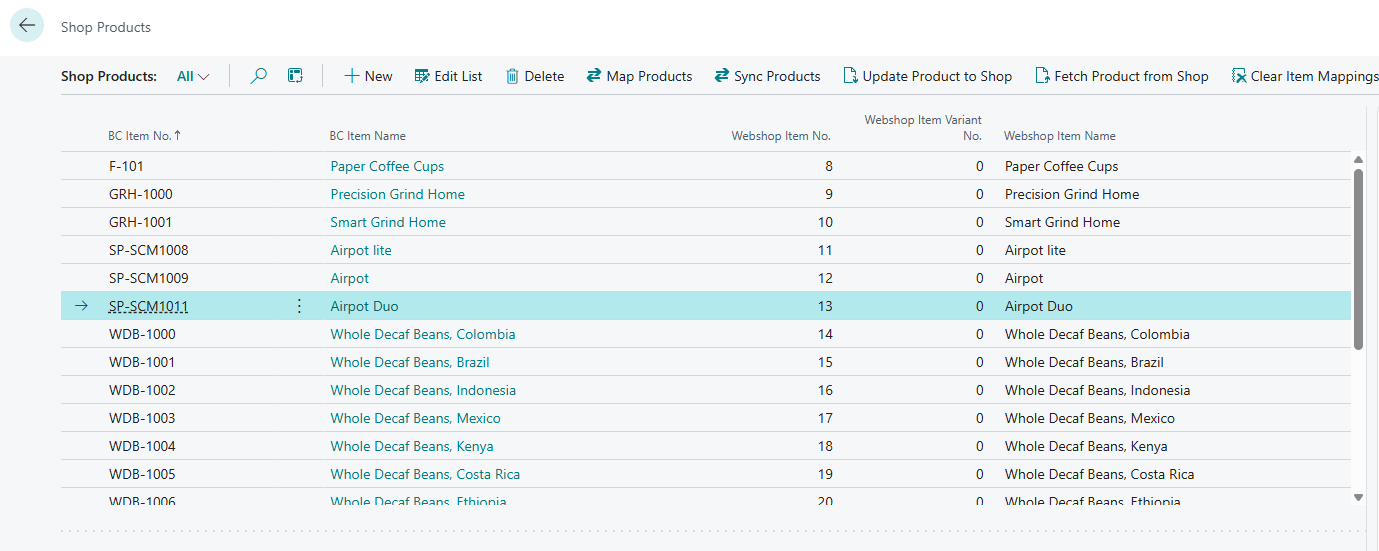
✅ This will create new products in Prestashop using BC data.
4. Verify Products in Prestashop
- Log into your Prestashop back office
- Go to Catalog → Products
- Confirm that your products are now visible and correctly configured
5. Next steps:
Now that your shop is connected and products are synced, you may want to:
- Configure price synchronization
- Configure inventory/stock synchronization
- Configure Sync Behavior
- You can configure MyShopMan to auto-sync stock or prices from BC to Prestashop
- Schedule background jobs or use manual sync as needed
✅ Outcome
You now have a new Prestashop shop:
- Populated with data from Business Central
- Fully connected for ongoing sync
- With Business Central as the master for product catalog and inventory
➡️ Next: Connecting to an existing Prestashop